Who’s Working Module Enhancements

Results offers greater flexibility and convenience in the Who’s Working module, with enhancements to how Assigned Activity information is displayed and how users manage settings.

What's New?

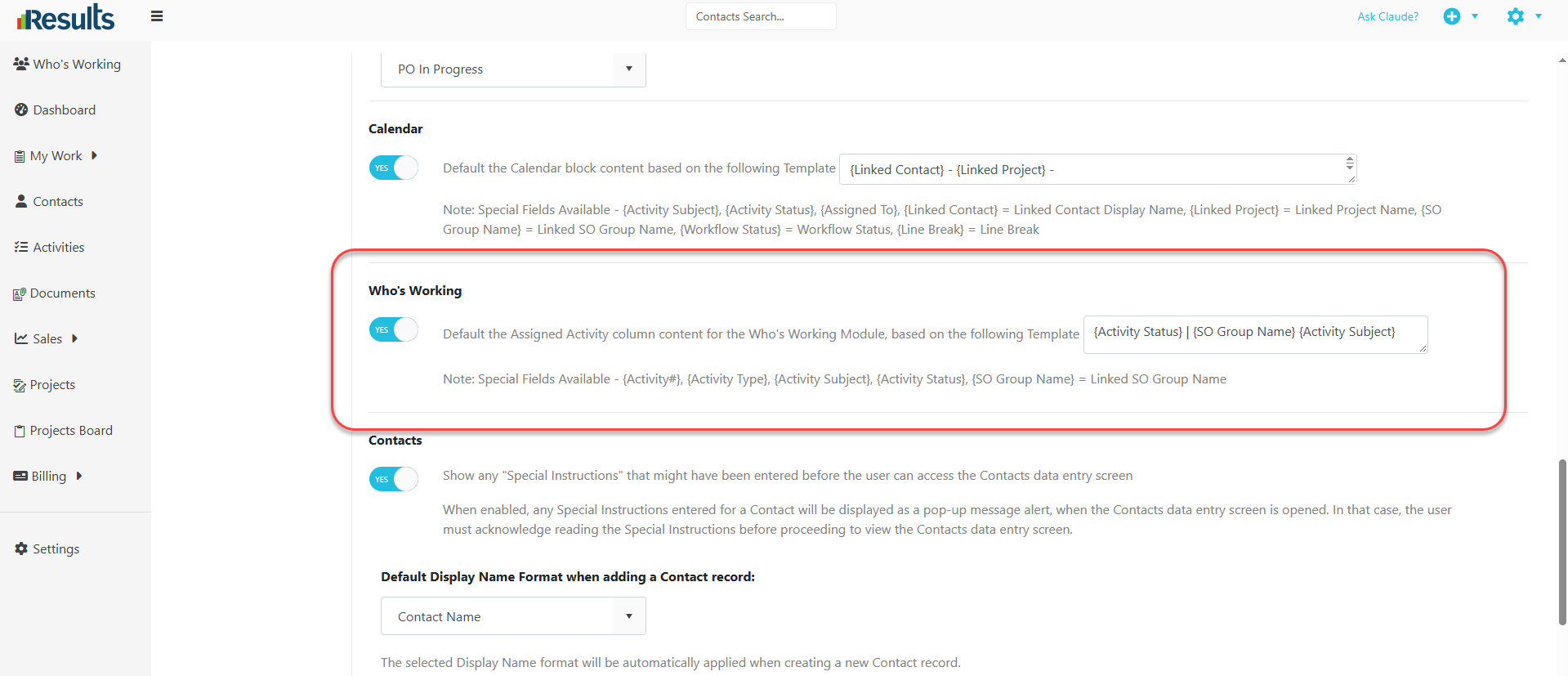
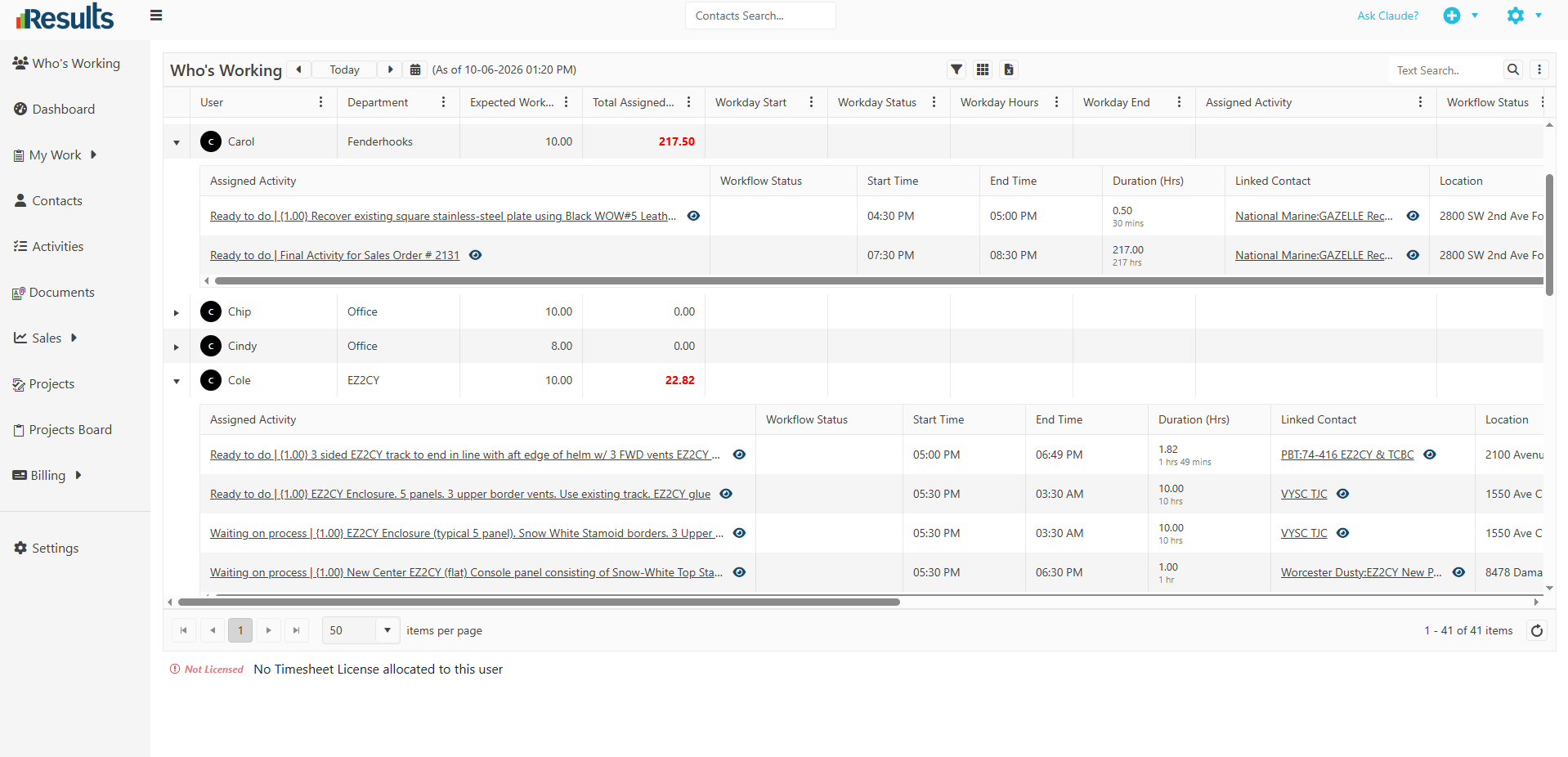
Default Assigned Activity Display – We added a new Admin setting toggle to the Who’s Working module, mirroring the existing setting in the Calendar module. This setting lets administrators control the information displayed for the Assigned Activity. The toggle is off by default and supports the following fields:

  • Activity #
  • Activity Type
  • Activity Subject
  • Activity Status
  • Sales Order Group Name— Displays the Linked SO Group Name

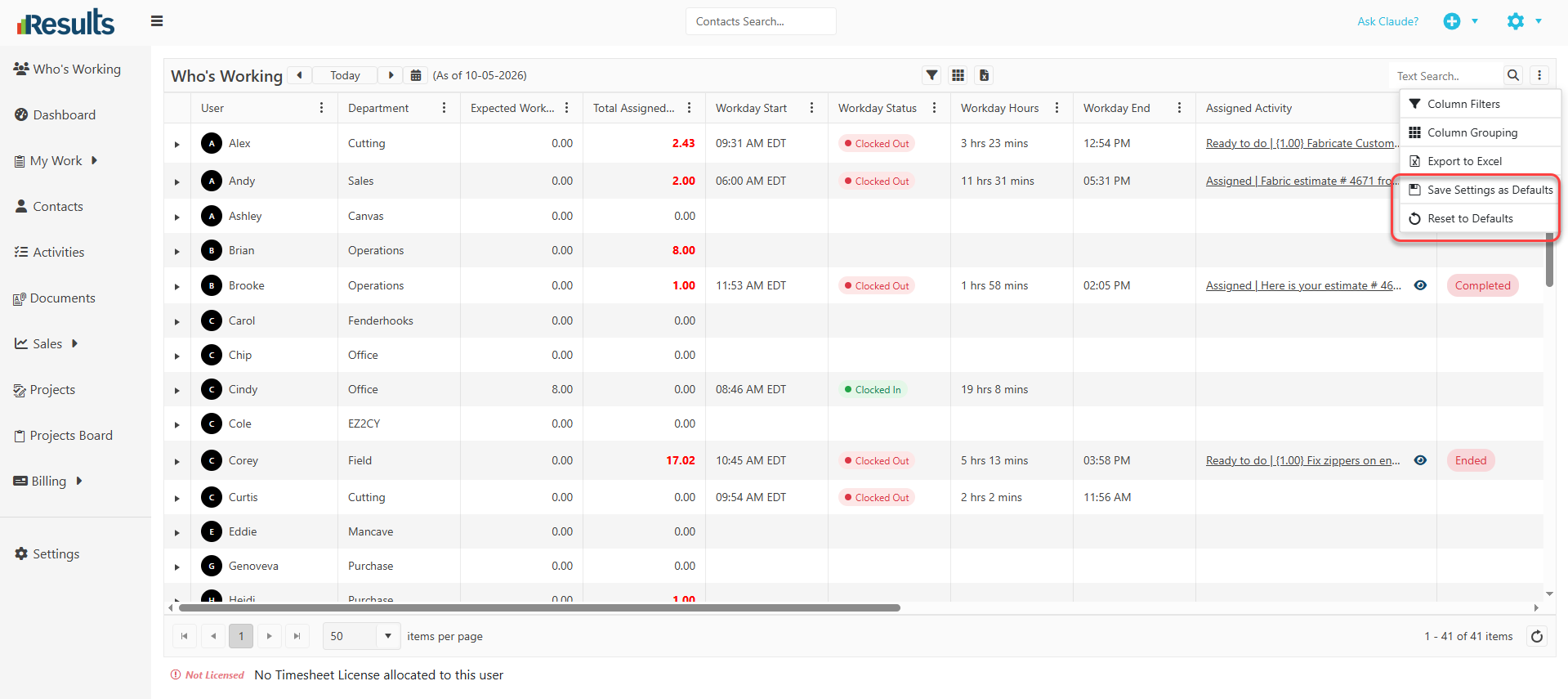
Save Settings as Default – The Who’s Working module now includes the ability to Save Settings as Default. This lets users save their preferred column settings and filters, so they apply automatically, reducing the need to reconfigure the module each time.
Why This Matters?

  • More Control Over Activity Display – Administrators can customize the information shown for Assigned Activities based on the needs of their team.

  • Improved Visibility – With options such as Activity Type, Subject, Status, and Linked SO Group Name, users can quickly identify relevant activity details directly from the Who’s Working module.

  • Personalized User Experience – The Save Settings as Default option allows users to maintain their preferred configuration for a more consistent experience.

  • Reduced Reconfiguration – Users no longer need to repeatedly adjust their Who’s Working settings, helping streamline daily workflows.

Expanded User Permissions and Key Utilities Access

Results provides administrators with greater control over user access to key utilities and integration configurations. New permission options have been added to the Users module, making it easier to...

Streamlined Refund Processing in Results Payments Integration

Results Payments Integration now provides a more streamlined way to process and track Refunds directly from Results. With the new “Issue Refund” functionality and enhanced transaction tracking,...

Generate Payment Links for Deposits

Results Payments Integration now makes it easier to collect Deposit payments directly from Projects. With the new Generate Payment Link for Deposit option, users can generate a secure payment link...

Pricing Group Items Data Manager

Results introduces enhanced tools for handling Pricing Groups through the new Pricing Group Items Data Manager. Users can efficiently view, edit, and manage items within a Pricing Group directly via...

Activity Assignment Notifications

Results provides more flexibility in how users are notified when an Activity is assigned or reassigned. Administrators can select a Communication Template to use when sending assignment...

Complete Job & Schedule Remaining Work

The new Complete Job & Schedule Remainder option allows users to manage Activities after job completion and before all planned work is performed by completing the current Activity and automatically...

View Project & Sales Order Activities Directly in the Calendar

Users can now visualize scheduled Activities with the new Show in Calendar option in the Projects and Sales Orders Activities Grid, with quick access to the Calendar View to see Activities enabled...

Submit Deposit Payments to QuickBooks Desktop as Sales Receipts

Results now allows submitting Deposit Payments directly to QuickBooks as Sales Receipts. A new Linked SKU/Name field has been added to the Payments data entry screen, allowing users to specify the...

Generate T&M Invoices Directly from Sales Orders

Results makes it easier to create Time & Material (T&M) Invoices directly from Sales Orders. With the new Generate T&M Invoice from SO option, users can generate an invoice based on the...

Who’s Working – See Who’s Working and What They’re Working On

Results introduces a new Who’s Working module that provides managers and users with a centralized view of Active Users and their current work. Accessible via the Gear Icon (and soon from the main...