Create a QB Job Along with an Opportunity or a Project

Results makes it easier to create QuickBooks (QB) Jobs from Parent Contact records. New menu options let you create a QB Job along with an Opportunity or Project. These enhancements simplify record creation, automate related record setup, and ensure Job Names export correctly to QuickBooks.

What's New?

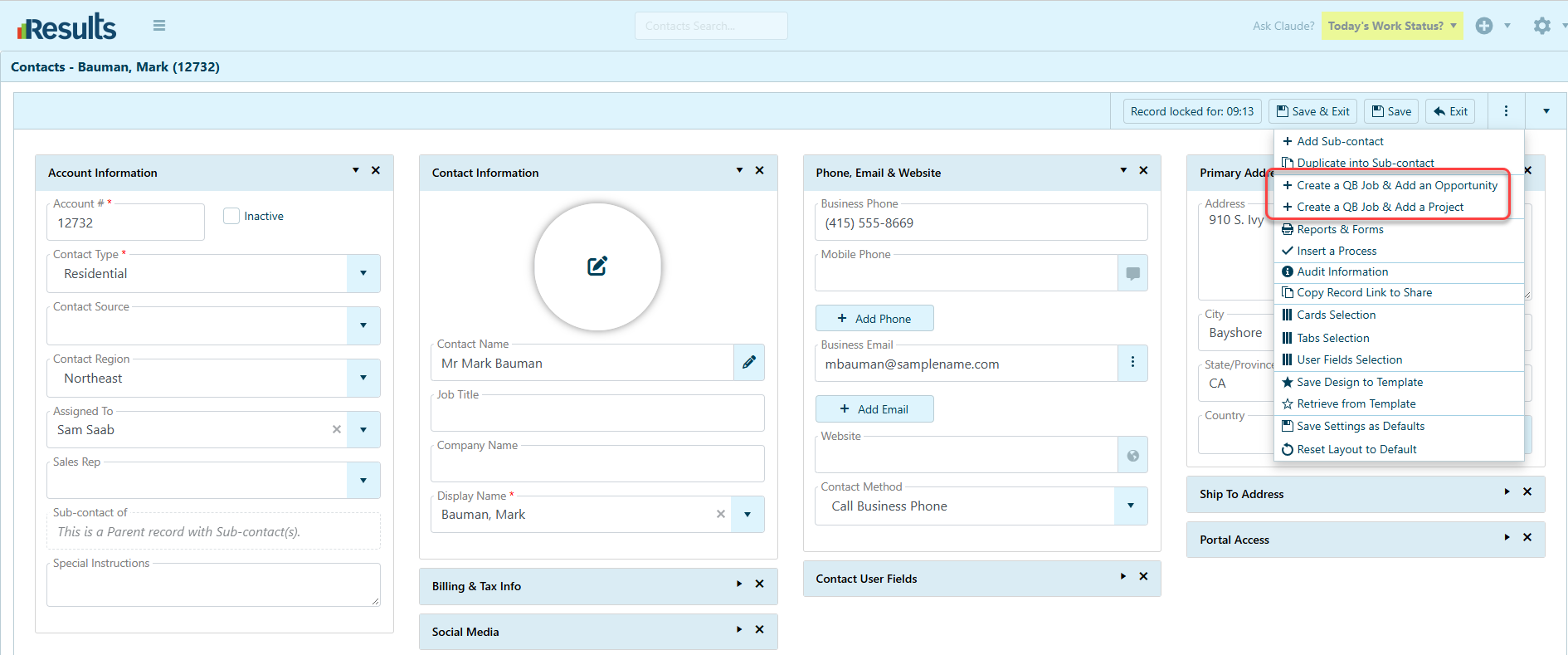
New Menu Options for Parent Contacts – The Parent Contact record’s 3-dot menu now includes two new options:

  • Create a QB Job & Add an Opportunity
  • Create a QB Job & Add a Project

These options allow users to create a QuickBooks Job and automatically associate it with a new Opportunity or Project.

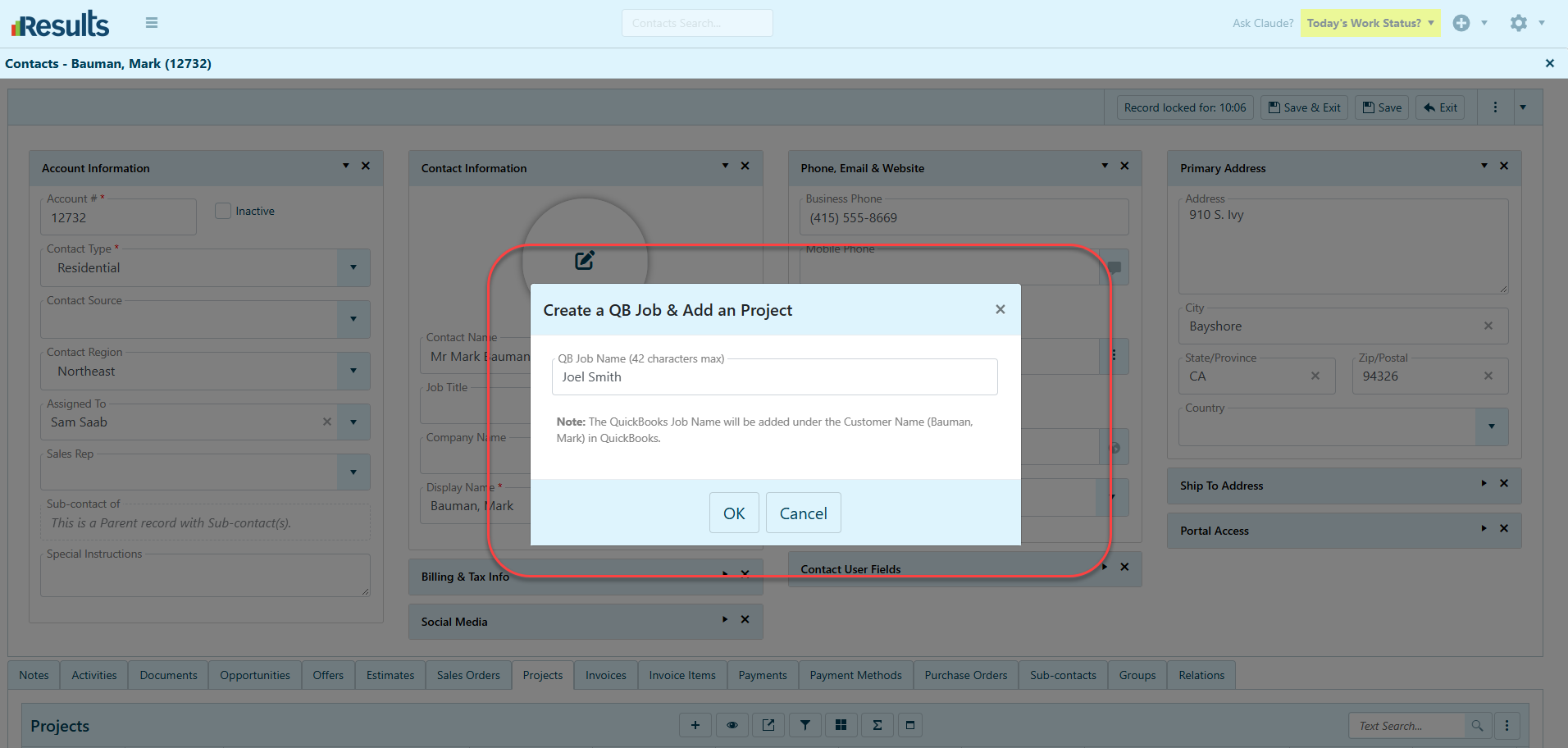
Job Name Validation – Selecting either menu option prompts the user to enter a Job Name for the new QuickBooks Job.

The system validates that the entered Job Name does not already exist before accepting it, helping prevent duplicate Job Names.

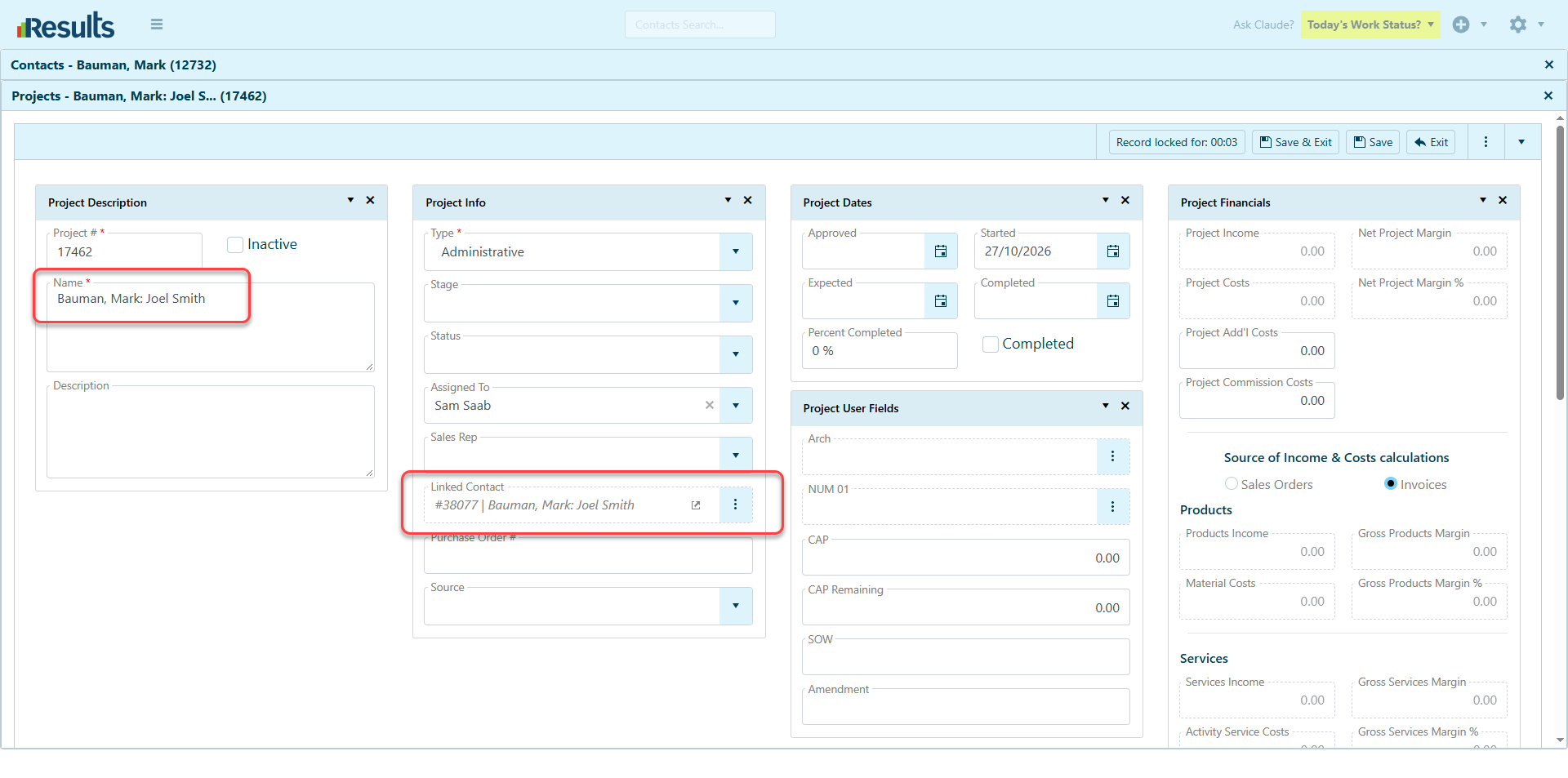
Automatic Sub-contact Creation – The new options follow the existing Copy into a Sub-contact process, with an additional step to construct the Sub-contact’s Display Name. The Display Name is automatically set to: Parent Contact Display Name + “: ” + Job Name – For example, if the Parent Contact Display Name is ABC Company and the Job Name is Office Renovation, the new Sub-contact Display Name will be: ABC Company: Office Renovation. The system automatically saves the Sub-contact record and creates the selected Opportunity or Project.

Automatic Opportunity and Project Linking – When users create an Opportunity or Project through these menu options, the system automatically populates its Name field with the Display Name of the newly created Sub-contact, ensuring consistency between the related records.

QuickBooks Export Name Handling – When exporting a Sub-contact to QuickBooks, Results removes the Parent Contact Display Name and the following colon and space from the Sub-contact Display Name before sending it.

In the example above, the Sub-contact Display Name “ABC Company: Office Renovation” is exported as “Office Renovation” for the Job Name. This ensures that QuickBooks receives the intended Job Name rather than the combined Parent Contact and Job Name.
Why This Matters?

Simplified Job Creation – Users can create a QuickBooks Job and its associated Opportunity or Project directly from a Parent Contact record without manually creating each record separately.

Improved Data Consistency – Automatically populating the Sub-contact Display Name and the related Opportunity or Project Name helps maintain consistent naming across records.

Duplicate Prevention – Job Name validation helps prevent duplicate Job Names during creation.

Reduced Manual Effort – Automatic saving and related record creation eliminate additional steps and streamline the workflow.

Accurate QuickBooks Integration – The export process sends only the intended Job Name to QuickBooks, while Results retains the combined Display Name format for organizing Sub-contacts under their Parent Contacts.

Standard Payment Receipt Enhancement

Results includes a Standard Payment Receipt in the Payments module, giving users a convenient way to generate and access a standardized receipt for payment records. Standard Payment Receipt –...

FSM Portal Job Card Quick Access Enhancements

Results now provides improved navigation on the FSM Portal with new Quick Access buttons on the Job Card, allowing users to jump directly to key sections of a job. These shortcuts help field service...

Unit Price and Cost Decimal Precision Enhancements

Greater precision and flexibility in managing financial values with a new setting in Admin Settings > Billing Settings. This enhancement lets users configure up to five decimal places for Unit...

Quantity Decimal Precision Enhancements

Greater precision and flexibility in managing quantities are available in Admin Settings > Billing Settings. This enhancement allows users to configure the number of decimal places displayed for...

Split Activity – Simplifying Team Assignments and Scheduling

The Split Activity feature in Results provides greater flexibility in activity management, allowing users to divide an existing activity into up to three additional activities and assign them to...

Expanded User Permissions and Key Utilities Access

Results provides administrators with greater control over user access to key utilities and integration configurations. New permission options have been added to the Users module, making it easier to...

Streamlined Refund Processing in Results Payments Integration

Results Payments Integration now provides a more streamlined way to process and track Refunds directly from Results. With the new “Issue Refund” functionality and enhanced transaction tracking,...

Generate Payment Links for Deposits

Results Payments Integration now makes it easier to collect Deposit payments directly from Projects. With the new Generate Payment Link for Deposit option, users can generate a secure payment link...

Who’s Working Module Enhancements

Results offers greater flexibility and convenience in the Who’s Working module, with enhancements to how Assigned Activity information is displayed and how users manage settings.Default Assigned...

Pricing Group Items Data Manager

Results introduces enhanced tools for handling Pricing Groups through the new Pricing Group Items Data Manager. Users can efficiently view, edit, and manage items within a Pricing Group directly via...