
What's New?
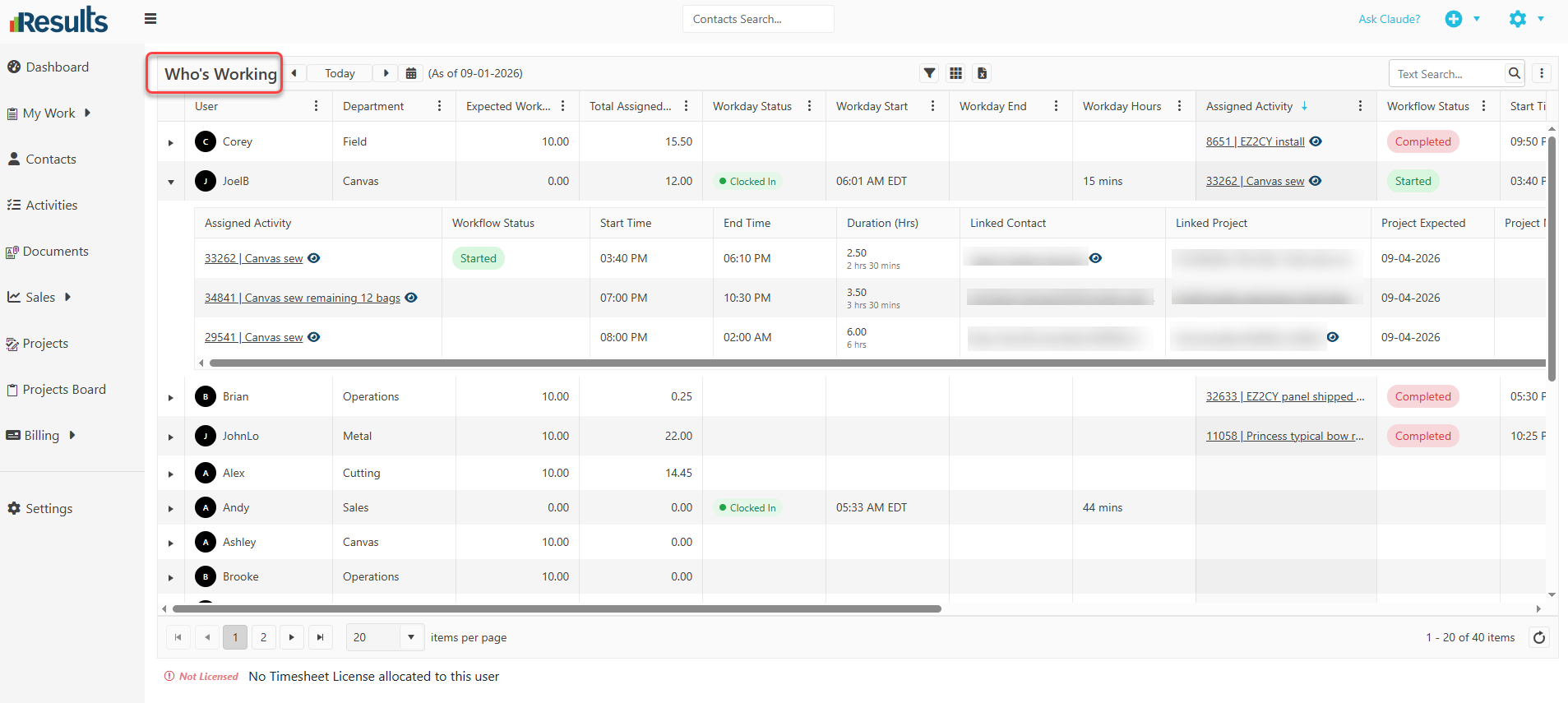
Active User Overview – The main Who’s Working grid provides key information about each user, including:
- User
- Department
- Expected Work Hours
- Total Assigned Hours
- Workday Status
- Workday Start
- Workday End
- Workday Total Hours
This provides an at-a-glance view of each user’s workday and assigned workload and whether they have already clocked in for the day and when they did that, in their own Time Zone.
Detailed Activity Information – For each user, the grid also provides visibility into the current activity that they are working on, including:
- Assigned Activity
- Workflow Status
- Start Time
- End Time
- Duration
- Linked Contact
- Location
- Linked Project
- Project Expected Date
- Project Notes
In the sub-grid, under each User record, you can see all assigned Activities in Start Time order, making it easy to see the Assigned work associated with that user for the selected date.
Date-Based Activity View – A date selector is available at the top of the Who’s Working grid. When the user selects a date, the Grid displays the Workday Information & Assigned Activities for that date. You can navigate to previous dates to see who clocked in and out that day and what they worked on, and navigate to future dates to see Time Off requested and Assigned workload.
Quick Access to Related Records – The Who’s Working module makes it easy to instantly access related information:
- The Assigned Activity, Linked Contact, Linked Project, and Project Notes fields are clickable, allowing users to open them directly.
- An Eye icon provides another quick way to view the associated record.
- Project Notes displays the first 75 characters of the Notes, so you can see the last timestamp for entered notes, with an Eye icon that allows users to view and modify the full Notes field in a pop-up window when needed.
Search, Filter and Group – Users can easily analyze the information displayed in Who’s Working with:
- Text Search across the available fields.
- Filtering to narrow down users or Activities.
- Grouping to organize the information based on selected fields.
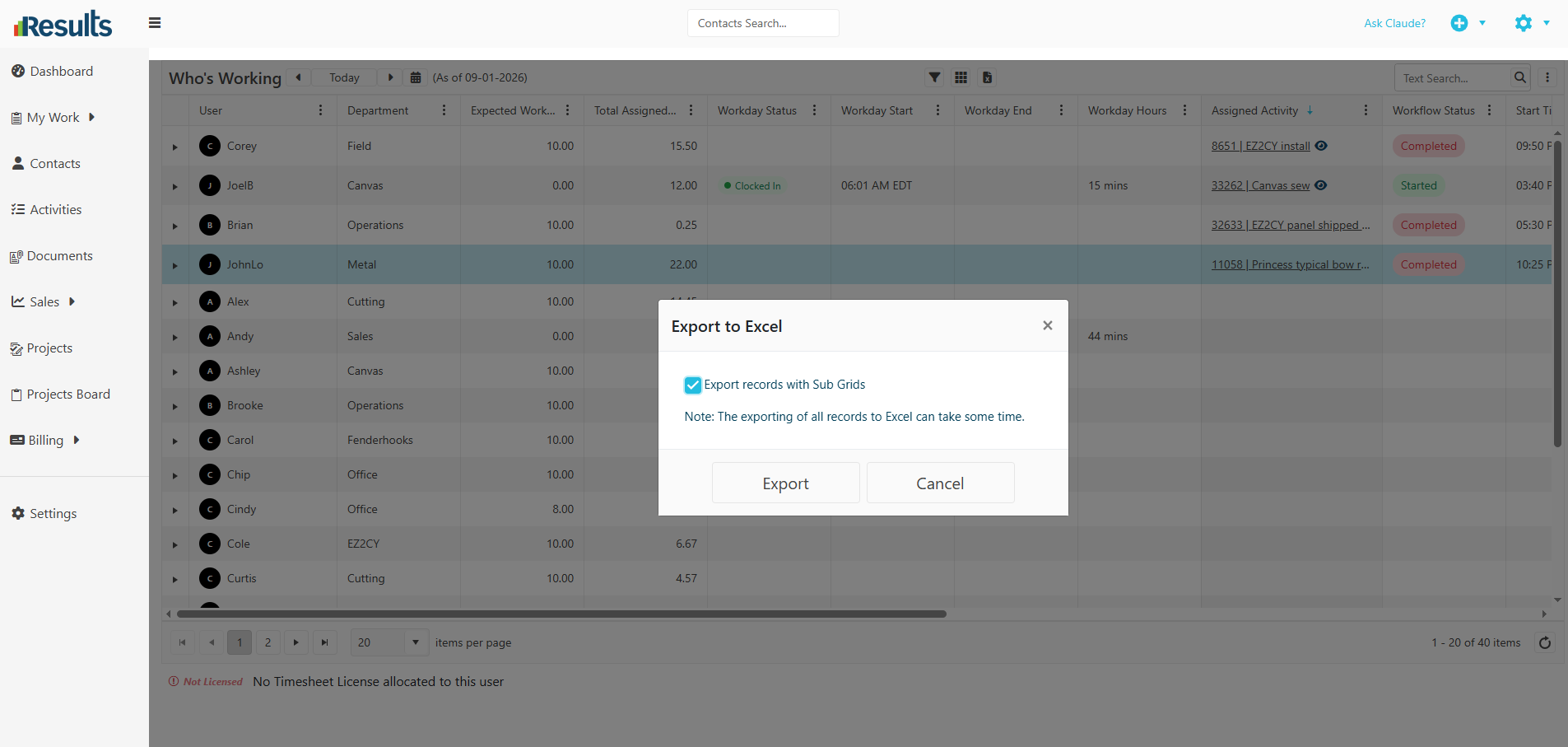
Export to Excel – Users can export Who’s Working data to Excel, including all Assigned Activity information in each user’s sub-grid, making it easy to share, analyze, or further work with the data outside of Results. The Excel file can be generated for the current, past, or future day you navigate to, providing a unique and consolidated view of your team’s attendance, assigned workload, and what they have completed and by when.
Why This Matters?
-
Know Who’s Working – Get a centralized view of active users, their workday status, their clock-in and clock-out time, their assigned workload, and their completed work.
-
Improve Workload Visibility – Quickly identify how many hours each user is Assigned, see the Activities contributing to their workload, and view the specific hours they are Expected to Work each day of the week (tracked in the User record), next to their actual Clock-In and Clock-Out times and total hours submitted for payroll. For previous days, you’ll see actually completed work and actual Duration vs. Timesheet/Payroll hours submitted per User.
-
Monitor Daily Activities – Use the date selector to view assigned tasks for a specific day and each user’s scheduled work.
-
Quickly Access Related Information – Open Activities, Contacts, Projects, and Project Notes directly from the Who’s Working grid for any User on any day – past, present, or future.
-
Analyze & Share Data – Use search, filters, grouping, and Excel export to analyze workload and Activity information in a format that works for your team.