
Maximize & Restore View for Tab Data Managers & Line-Item Grids

The Maximize/Restore option across Tab Data Managers and Financial Line-Item Grids makes it easier to work with large datasets by expanding the grid to display more records at once. In addition, the header section of expanded grids now remains fixed, ensuring important actions and menus are always accessible while scrolling through these lists.

What's New?

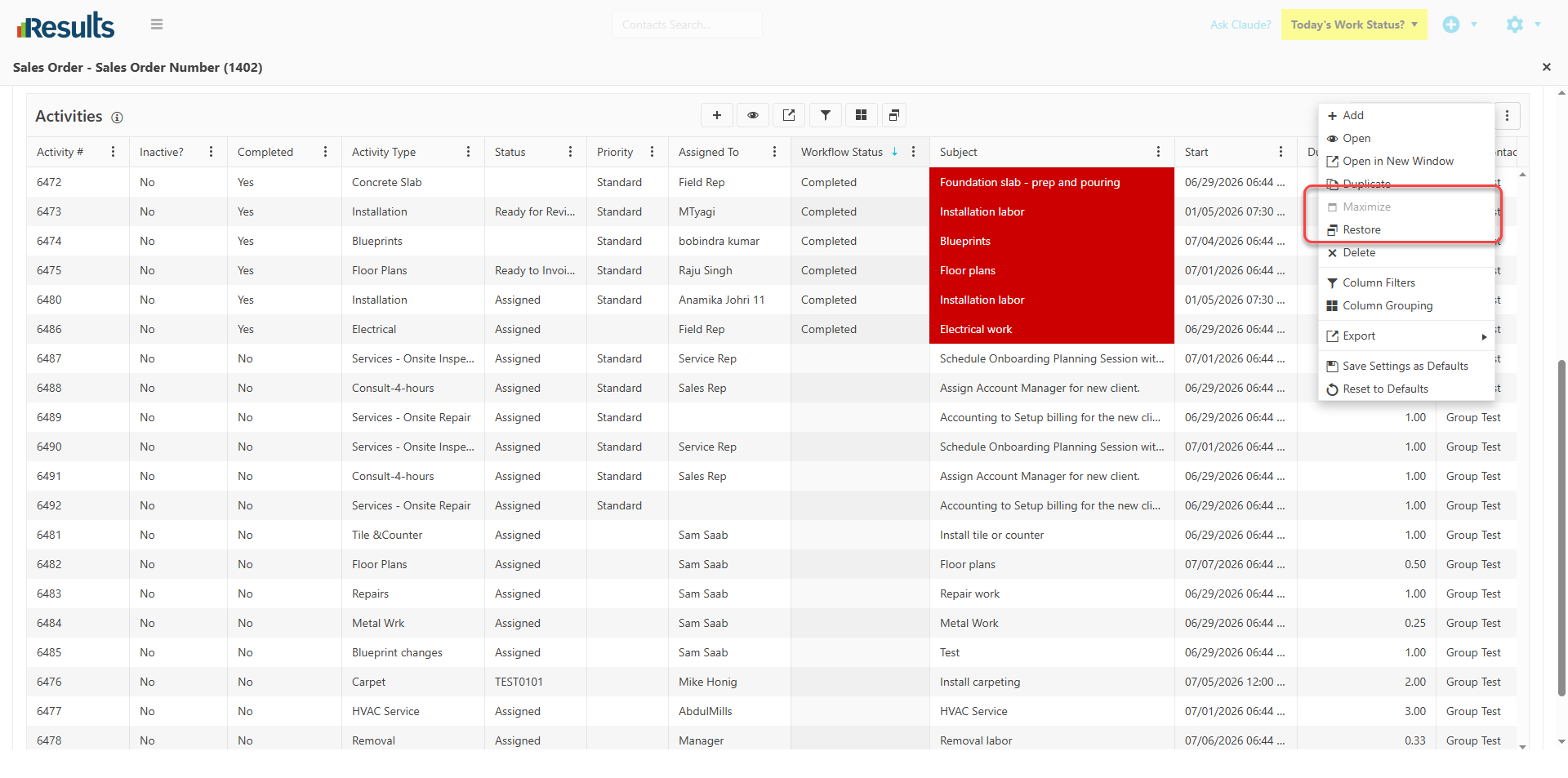
  • Maximize/Restore Grid Option – A new Maximize/Restore button is available to all Tab Data Managers in every module and to Financial Line-Item Grids. Selecting Maximize expands the grid to show the maximum number of rows, while Restore returns the grid to its original size.

  • Sticky Grid Header in Expanded View – When the grid is maximized, the upper part of the Data Manager remains fixed as users scroll through records. This design allows quick access to the column headers, the grid action buttons, the 3-dot menu, and other controls at the top of the Tab or Grid.
Why This Matters?

  • More Workspace, Less Scrolling – Maximizing the grid allows users to view and work with more records at once, improving productivity when managing large datasets.

  • Always-Accessible Actions – With the Tab/Grid header visible, users can access common actions and menu options without scrolling back to the top of the grid.
  • Improved Navigation – Keeping key controls within reach creates a smoother, more efficient experience when reviewing or updating records.
  • Enhanced Usability – The combination of an expanded viewing area and a sticky header makes working in Data Managers and Line-Item Grids faster, more convenient, and more user-friendly.

Pricing Group Items Data Manager

Results introduces enhanced tools for handling Pricing Groups through the new Pricing Group Items Data Manager. Users can efficiently view, edit, and manage items within a Pricing Group directly via...

Activity Assignment Notifications

Results provides more flexibility in how users are notified when an Activity is assigned or reassigned. Administrators can select a Communication Template to use when sending assignment...

Complete Job & Schedule Remaining Work

The new Complete Job & Schedule Remainder option allows users to manage Activities after job completion and before all planned work is performed by completing the current Activity and automatically...

View Project & Sales Order Activities Directly in the Calendar

Users can now visualize scheduled Activities with the new Show in Calendar option in the Projects and Sales Orders Activities Grid, with quick access to the Calendar View to see Activities enabled...

Submit Deposit Payments to QuickBooks Desktop as Sales Receipts

Results now allows submitting Deposit Payments directly to QuickBooks as Sales Receipts. A new Linked SKU/Name field has been added to the Payments data entry screen, allowing users to specify the...

Generate T&M Invoices Directly from Sales Orders

Results makes it easier to create Time & Material (T&M) Invoices directly from Sales Orders. With the new Generate T&M Invoice from SO option, users can generate an invoice based on the...

Who’s Working – See Who’s Working and What They’re Working On

Results introduces a new Who’s Working module that provides managers and users with a centralized view of Active Users and their current work. Accessible via the Gear Icon (and soon from the main...

QuickBooks® Desktop Payments Sync Redesign

The QuickBooks® Desktop Payments Sync process has been redesigned to provide greater flexibility and accuracy when synchronizing customer payments between Results and QuickBooks Desktop. Redesigned...

New Timesheets Portal for Stand-Alone Timesheet Users

With the dedicated Timesheets Portal for organizations, employees can record and manage timesheets without requiring a BackOffice or an FSM Results license. Accessible through a simple web address,...

JotForm Integration with Multi-Form Support

An enhanced JotForm Integration allows organizations to connect up to six separate JotForm forms and automatically create Contact records as soon as a form is submitted. Each form can be...