Introducing FSM Plus License for Enhanced Field Service Capabilities

The Field Service Management (FSM) Plus License gives organizations greater control and flexibility to manage financial operations, including Estimates, Invoices, and Payments, for specific users directly in the FSM Portal. This new license tier empowers field teams with expanded capabilities while enabling administrators to control access at a granular level.

FSM Plus License Availability 

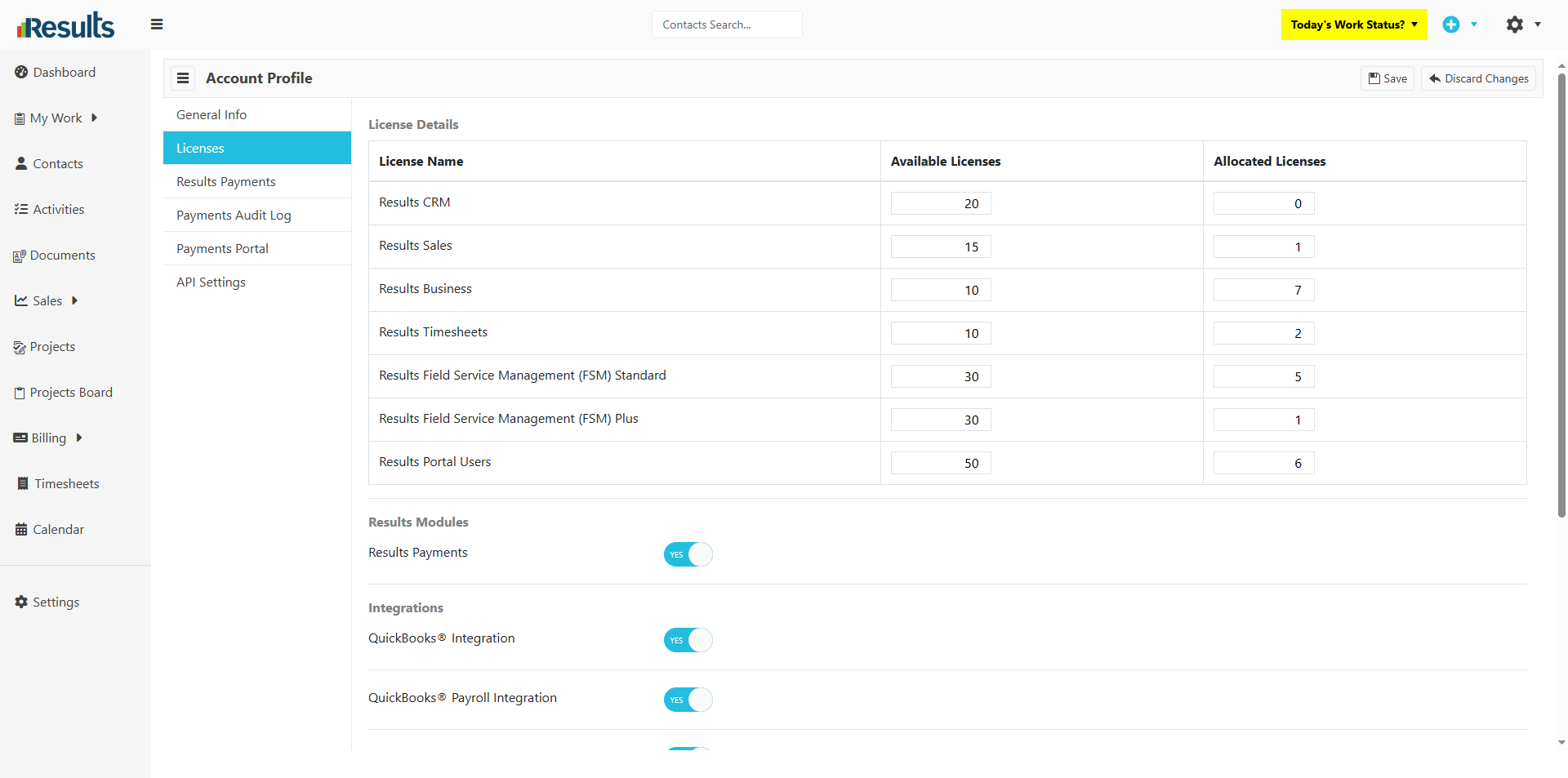
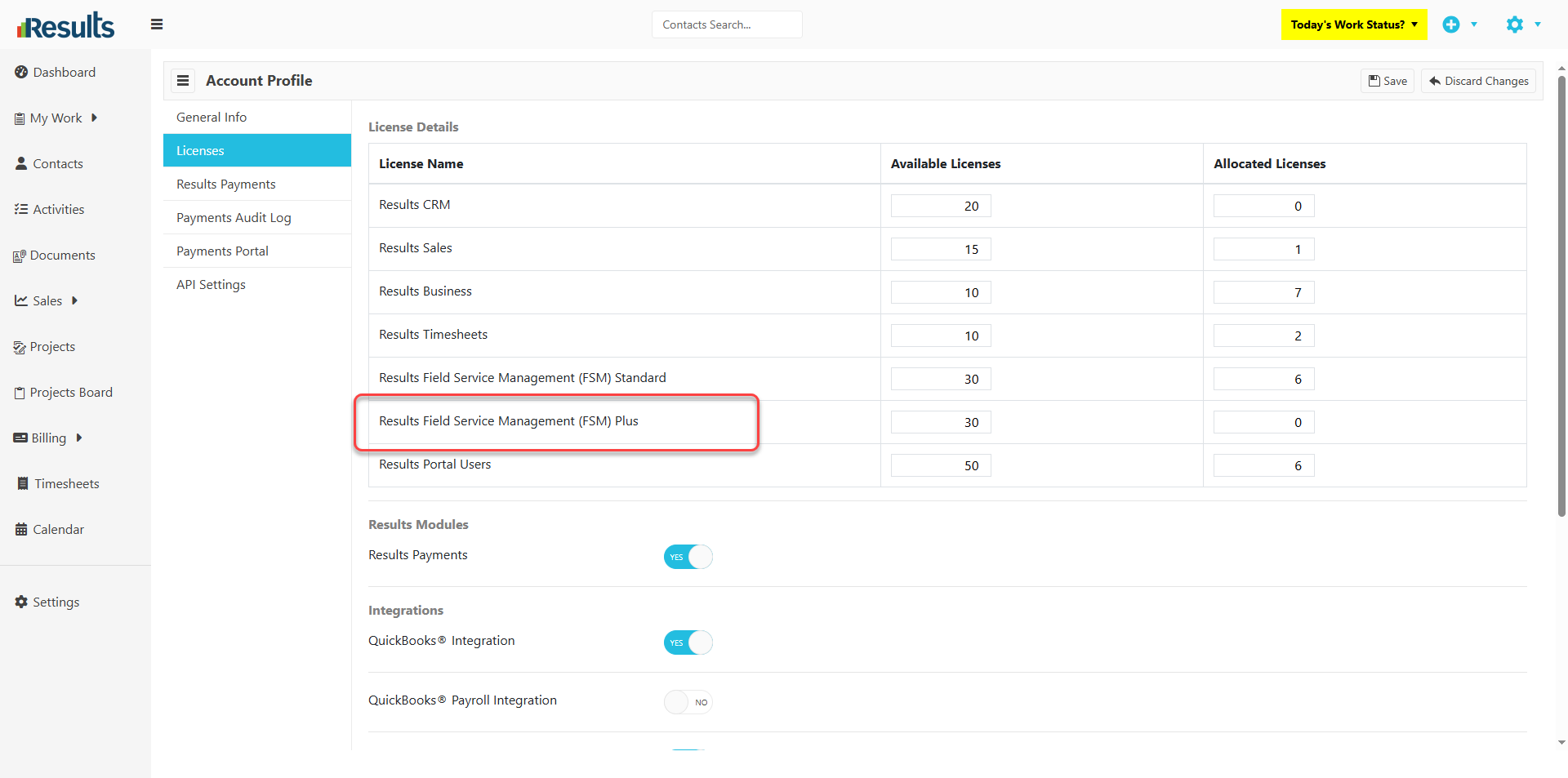
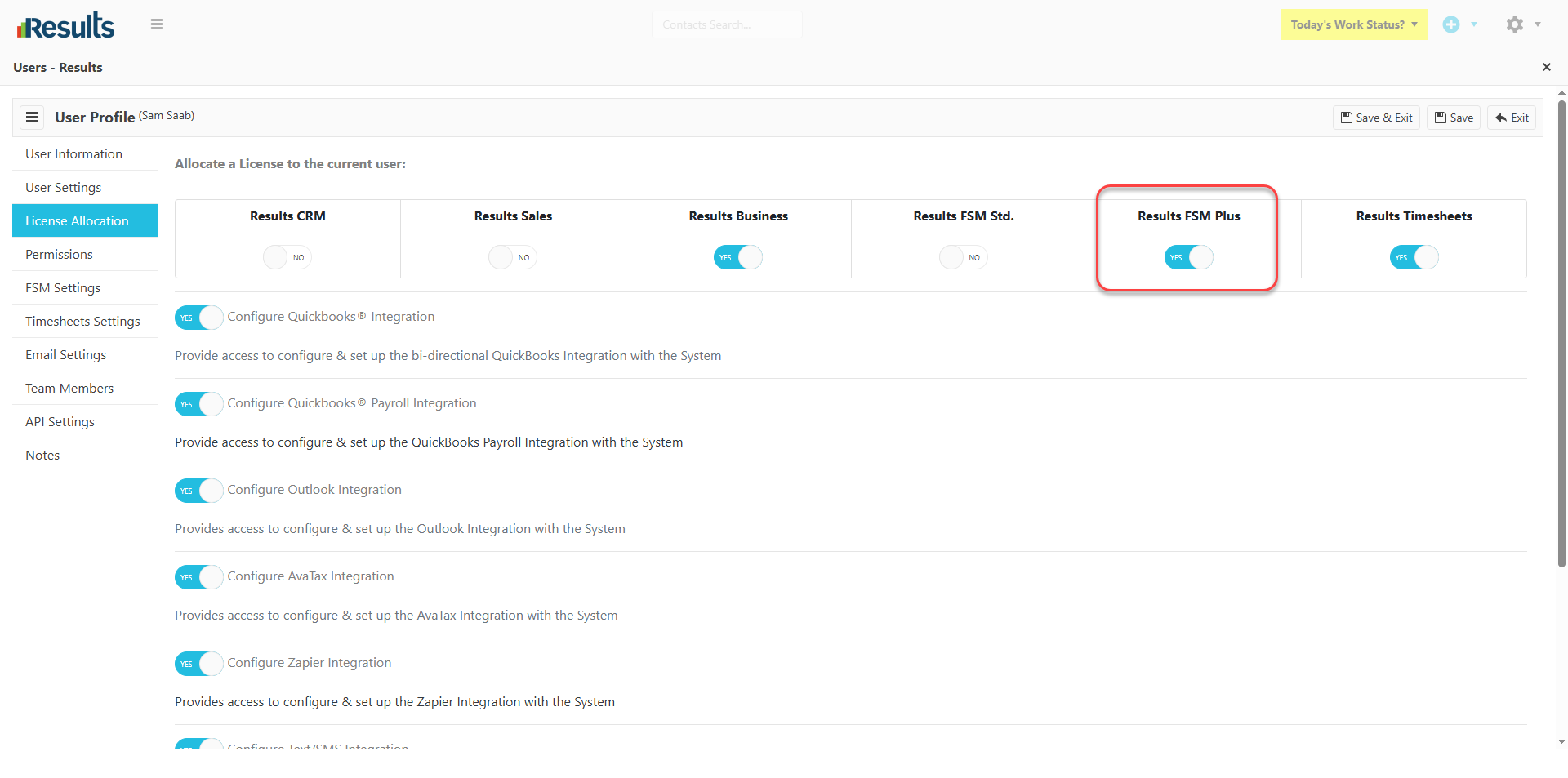
  • On the Account Profile, Results added a new Results FSM Plus License.
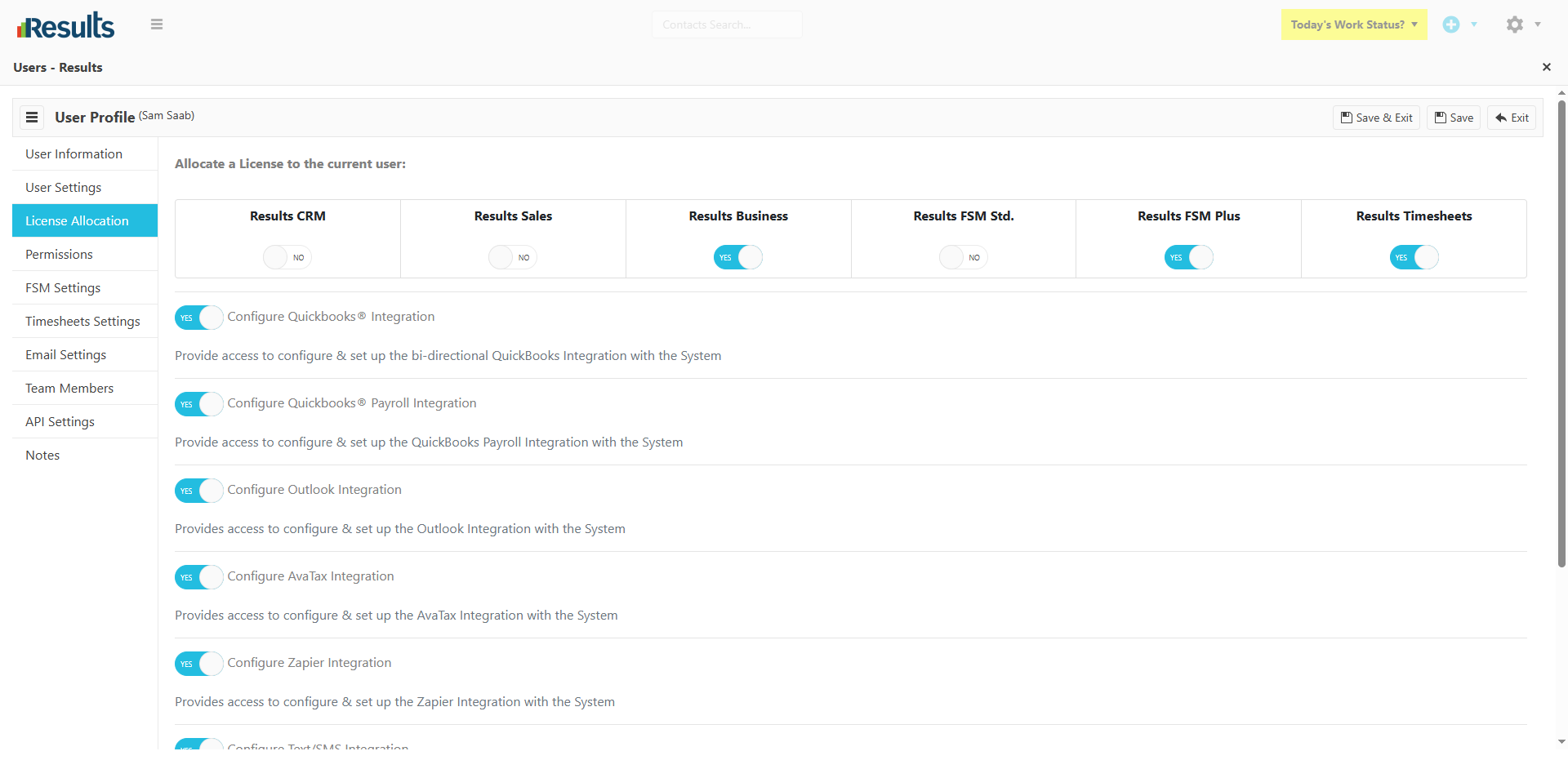
  • The same license is now available in the User Profile → License Allocation tab for user-level assignment.
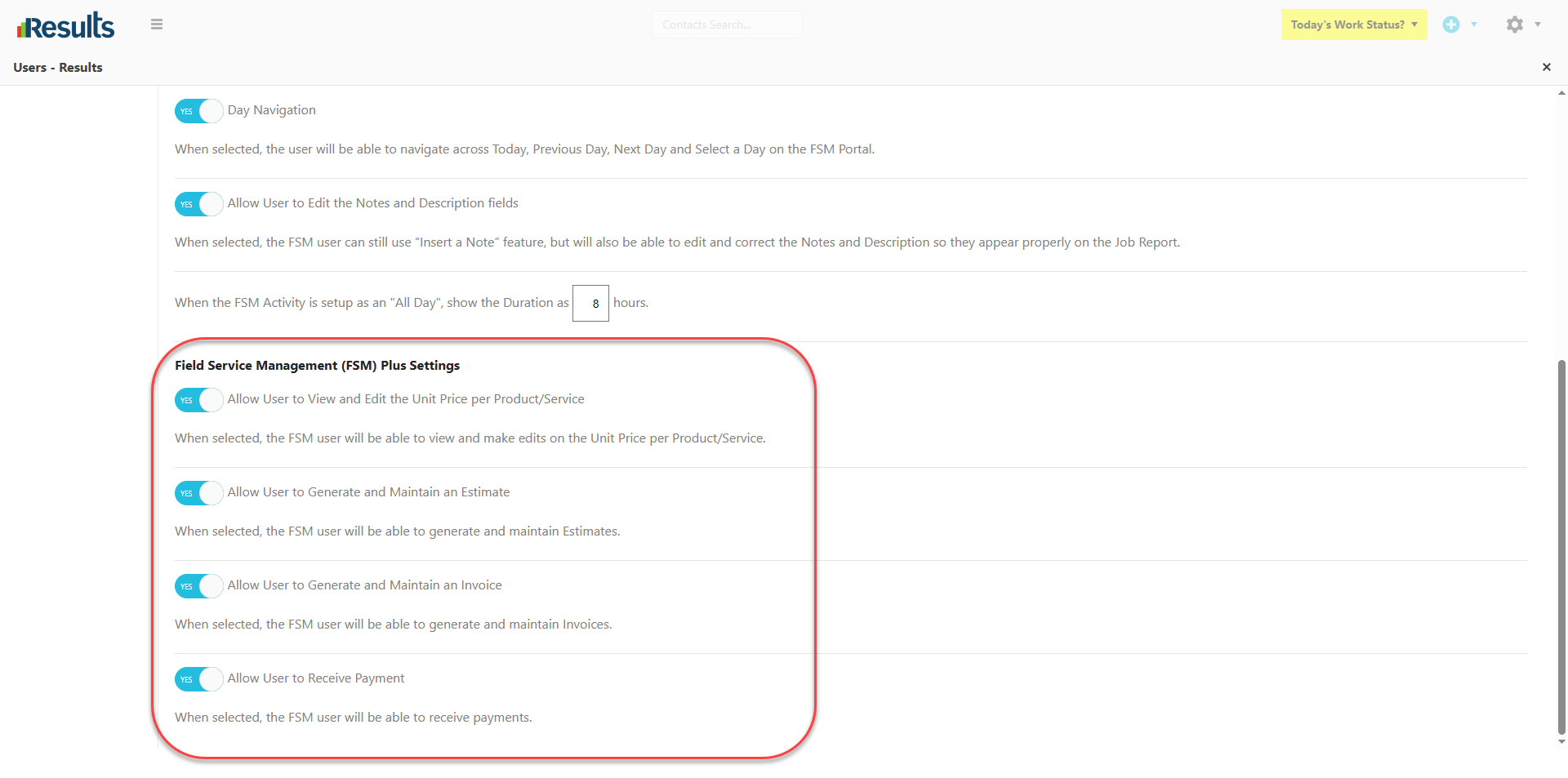
Once enabled for a user, additional FSM Plus settings become available.


FSM Plus Settings – Administrators can configure the following permissions for each licensed user:

  • Unit Price Visibility & Editing: Users can view and edit the Unit Price for Products and Services directly in FSM.
  • Estimate Management: Enables users to generate, maintain, and email Estimates to support pre-service cost planning and approvals.
  • Invoice Management: Allows users to generate, maintain, and email invoices, streamlining billing processes from the field.
  • Payment Collection: Grants users the ability to receive payments for an invoice with a balance due or as a deposit, enabling faster, more efficient transaction processing.
Expanded Field Capabilities: Empower field teams to manage end-to-end service operations, from estimates to payments, without relying on back-office support.

Controlled Access: Administrators can selectively enable features by user role, ensuring security and proper governance.

Improved Operational Efficiency: Reduce billing and payment collection delays by enabling critical financial actions directly within the FSM portal.

With the FSM Plus License, Results enhances field service operations by combining flexibility, control, and efficiency in a single powerful upgrade.

To learn more or to add FSM Plus licenses for your team, contact the Results Sales Team.
Enhanced Workflow Status Visibility & Control from Back Office

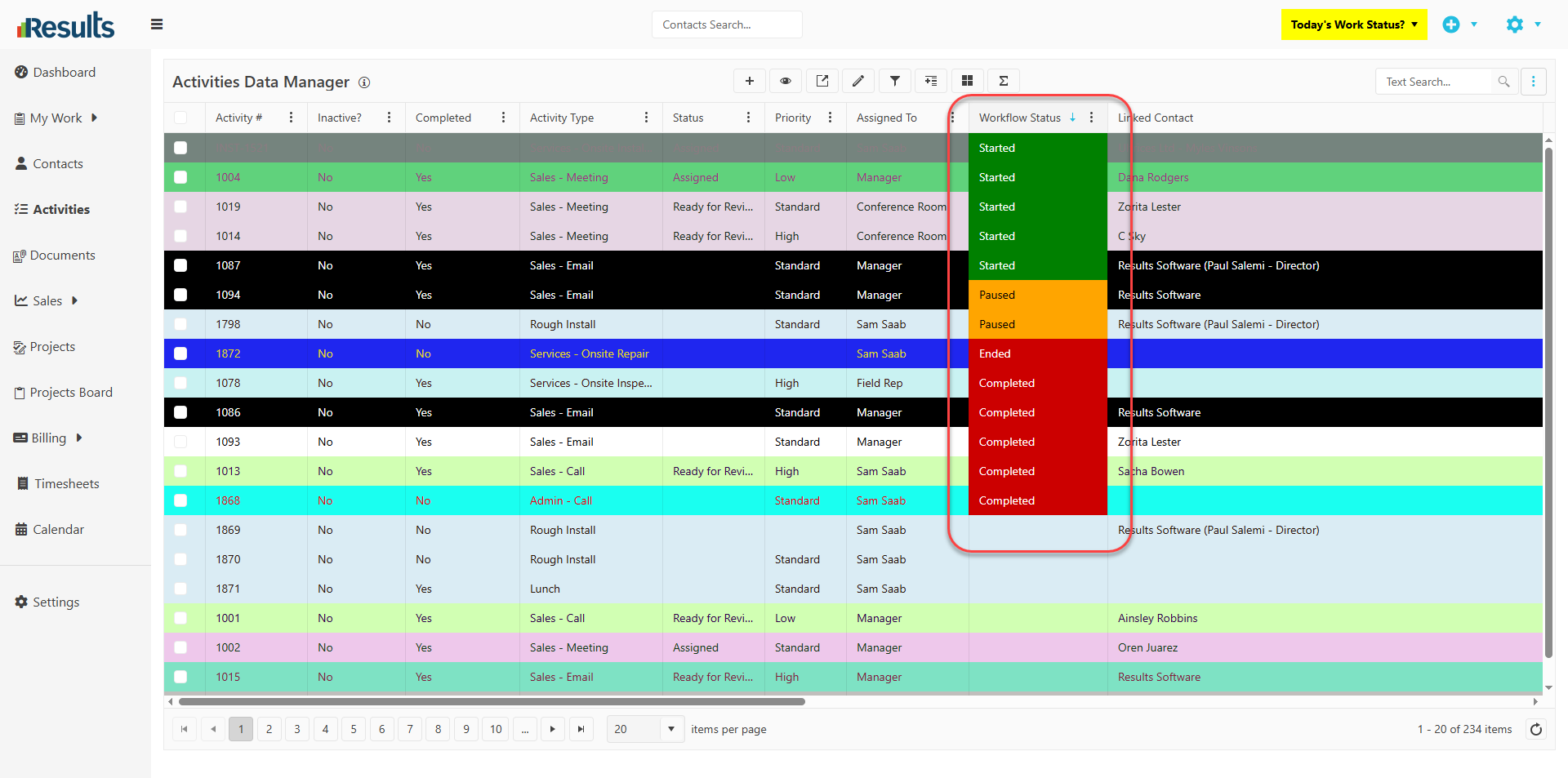
A key enhancement improves viewing and managing the Workflow Status from the Back Office, giving users better visibility and control over activity progress within the Activities Data Manager. These updates make it easier to quickly understand job status at-a-glance and provide the flexibility to reset workflows when needed.

Color-Coded Workflow Status – The Workflow Status field in the Activities Data Manager now includes cell-level color coding, allowing users to instantly identify the status of an activity or job

  • Started → Green
  • Break → Orange
  • End/Completed → Red

This visual enhancement improves readability and helps users quickly assess progress without opening individual records.

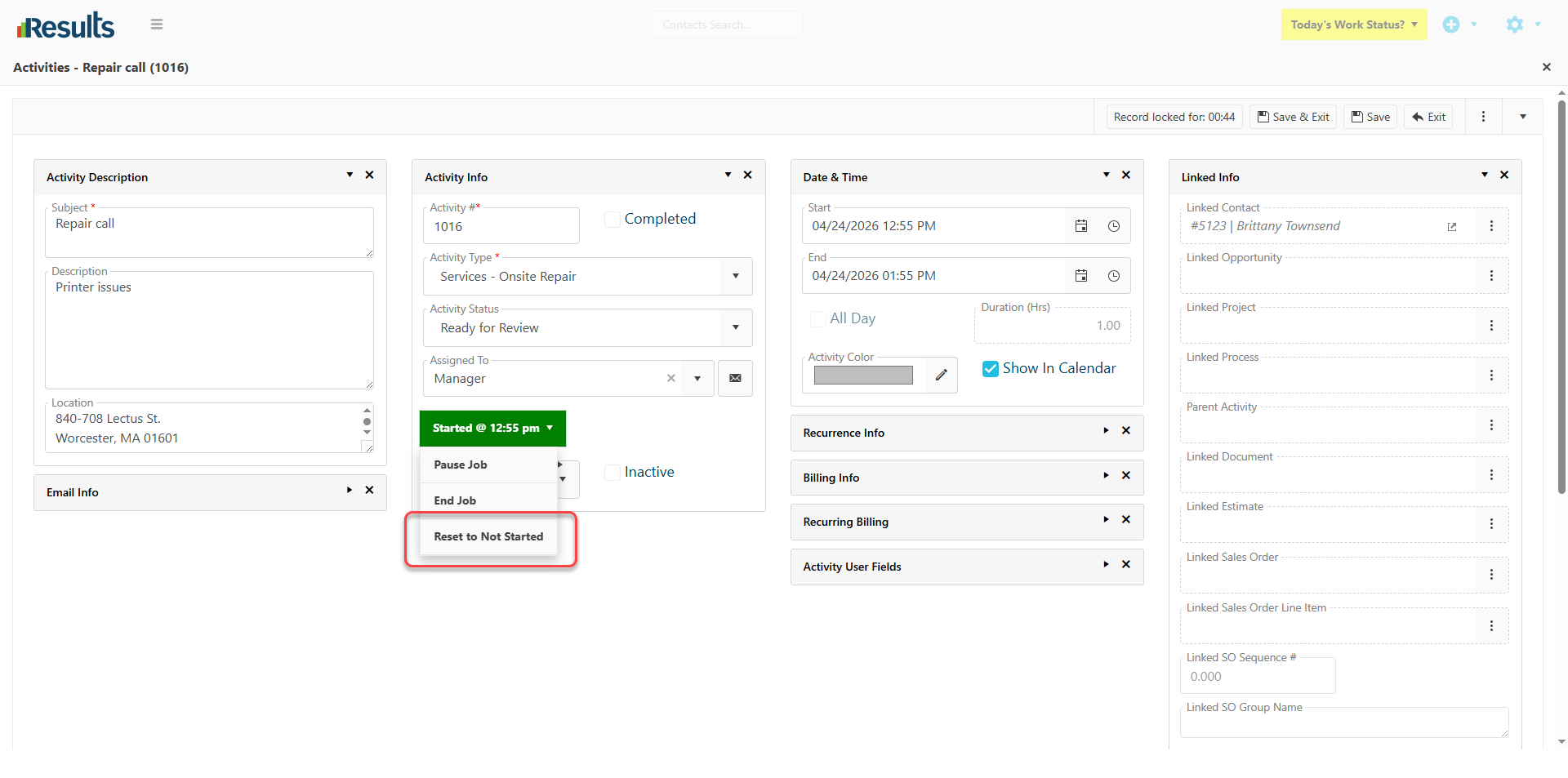
Reset Workflow Status to “Not Started” – A new addition to the Workflow Status dropdown is “Reset to Not Started.” This option is available only when the status is Started, Ended, or Completed. This option is hidden when the status is already set to Not Started or Blank. When selected:

  • The Workflow Status is cleared and reset to Not Started, which is shown in yellow.
  • Any greyed-out or locked Start and End dates are cleared, and the controls become available.

Improved Visibility: Color-coded statuses make it easy to track activity progress at-a-glance, reducing the need for manual checks.

Greater Control: Users can now reset workflows as needed, ensuring flexibility in handling real-world rescheduling or reassignment.

Better Data Accuracy: Clearing locked dates and resetting statuses helps keep activity records clean and accurate.

Advanced Search Now Available in Calendar Module

A new, robust integration with the Calendar module is the Advanced Search feature, which allows users to swiftly filter activities directly within the Calendar view. This improvement makes the Calendar search more accurate, saving time and boosting daily productivity.


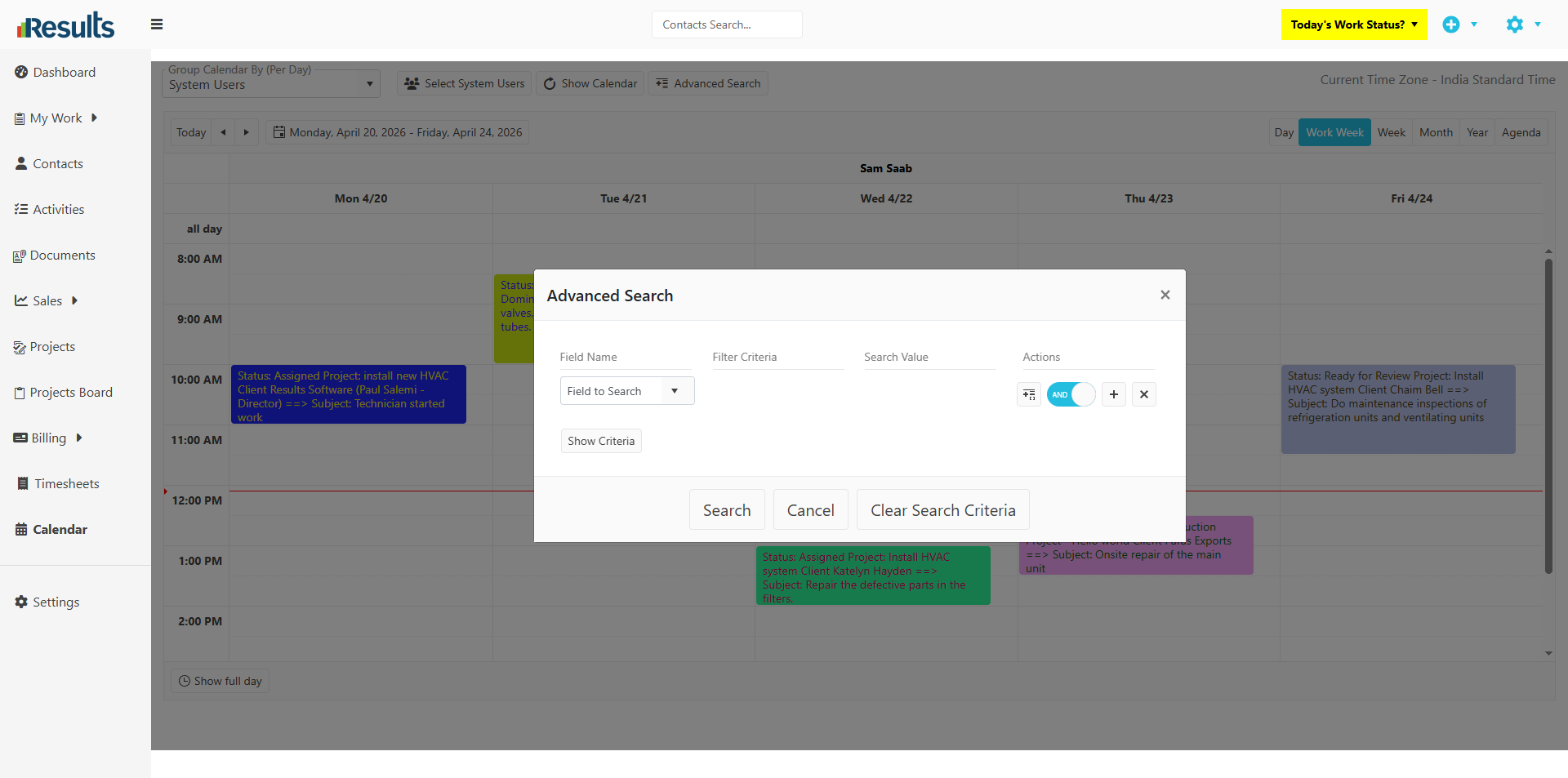
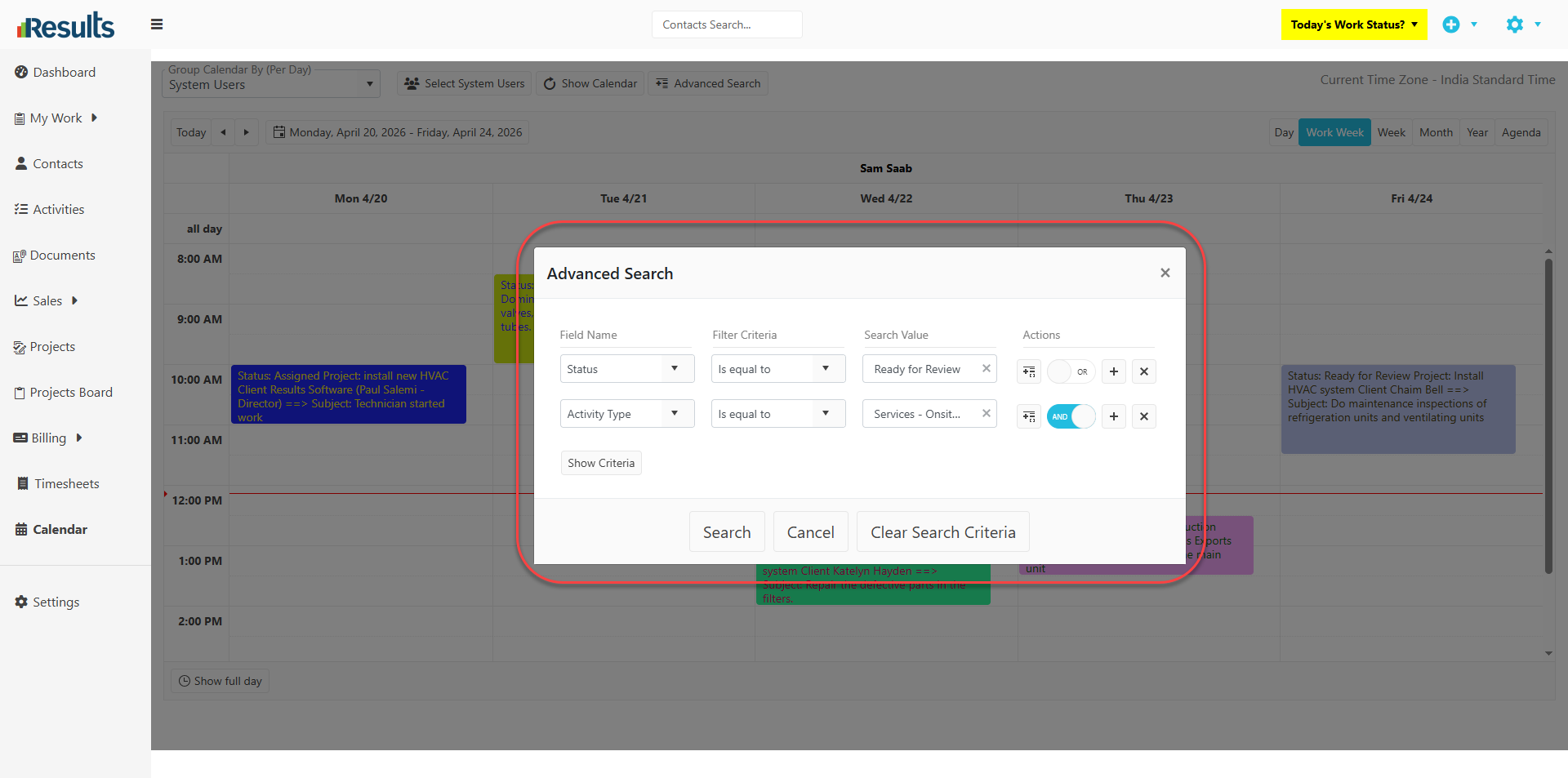
Advanced Search in Calendar – Users can access the Advanced Search module from the Calendar module using the Advanced Search button. This opens a search panel where:
    • Field Name displays Activity fields (e.g., Activity #, Status, Activity Type, Assigned To, Completed) as well as linked information such as Projects, Opportunities, Estimates, and Sales Orders.

    • Select Filter Criteria to define how to apply the search.

    • Search Value allows users to enter a specific value to filter results.

Flexible Search Logic:

    • Use AND/OR operators to combine multiple conditions.
    • Use the Add Group option to create grouped criteria for more complex filtering scenarios.

This allows users to build highly specific and structured queries directly within the Calendar.

Faster Activity Tracking: Quickly locate specific activities without manually scanning the calendar. For example, have the calendar display all activities for one or more specific projects, regardless of who the work is Assigned To.

Improved Productivity: Filter and find relevant data in just a few clicks, reducing time spent navigating across modules.

Enhanced Flexibility: Combine multiple filters to create highly targeted searches tailored to your workflow.

This update makes the Calendar module more powerful and user-friendly, giving users greater control and visibility into their scheduled activities.

Smarter Date Filtering with Dynamic Weekly Search Keywords

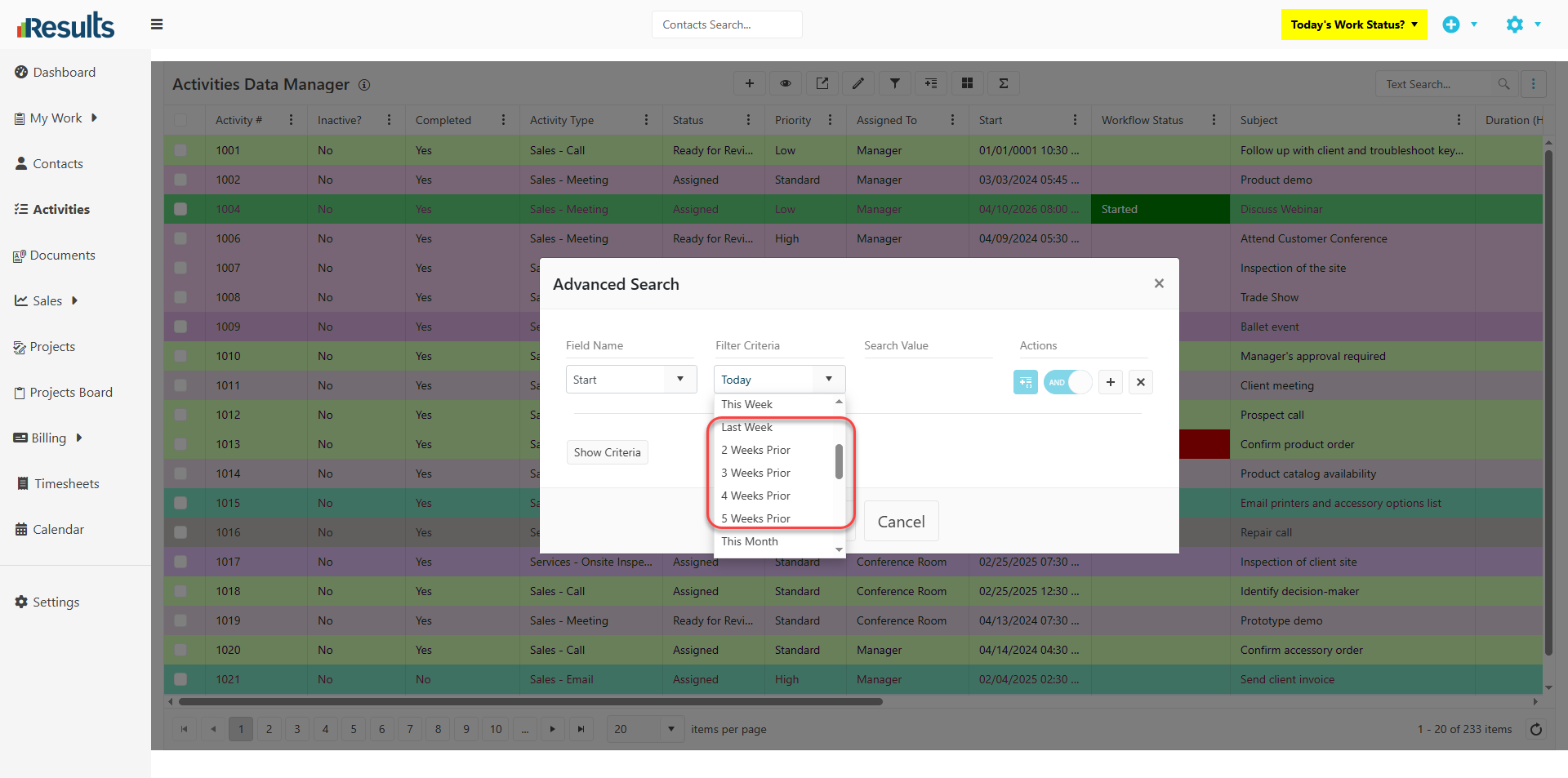
A new, powerful dynamic date search enables keyword searches in the Advanced Search engine, making it easier to filter records by relative timeframes without manually calculating and updating date ranges. This enhancement allows users to retrieve data quickly and precisely from previous weeks, improving efficiency and reducing the likelihood of manual errors when setting date ranges.


Dynamic Weekly Date Keywords – The following keywords are now available in the Advanced Search module:
    • Last Week
    • 2 Weeks Prior
    • 3 Weeks Prior
    • 4 Weeks Prior
    • 5 Weeks Prior
Each keyword automatically generates a dynamic date range based on the current date (i.e., the date of the search execution). For example, if a search runs today (Thursday, 04/23/2026), the system will interpret:
    • Last Week → 13/04/2026 to 19/04/2026 (inclusive)
    • 2 Weeks Prior → 06/04/2026 to 12/04/2026 (inclusive)
    • 3 Weeks Prior → 30/03/2026 to 05/04/2026 (inclusive)
    • 4 Weeks Prior → 23/03/2026 to 29/03/2026 (inclusive)
    • 5 Weeks Prior → 16/03/2026 to 22/03/2026 (inclusive)

Faster Searches, Less Manual Work: Users no longer need to calculate or enter specific date ranges; simply select a keyword and let the system manage the logic.

Improved Accuracy: By eliminating manual date entry, this feature reduces the risk of errors and ensures consistent reporting across teams.

Better Reporting & Analysis: Quick access to weekly historical data enables more efficient tracking of trends, performance, and operational insights.

Seamless Timesheet Integration with QuickBooks Desktop Payroll

An improved integration with QuickBooks® Desktop Payroll helps businesses simplify timesheet management and payroll processing across systems. This feature ensures precise synchronization of employee information and timesheet entries, reducing manual work and improving payroll efficiency.

QuickBooks Payroll Integration License

      • Added to the Account Profile is a new “QuickBooks® Payroll Integration” license.
      • This license enables full payroll integration capabilities from within Results.

Employee Synchronization & Mapping

      • Import QuickBooks Employees into Results.
      • Display the QB Employee and QB Sales Rep fields on the User Profile to ensure accurate mapping.
Timesheet Export to QuickBooks

      • Export Workday, Breaks, and Time-Off Activities directly to QuickBooks Desktop.
      • Ensure proper mapping between Results activities and QuickBooks Payroll Items.
QuickBooks Time Integration Setup– Steps to configure the integration are:

    1. Enable the “Configure QuickBooks® Payroll Integration” toggle on the User Profile.
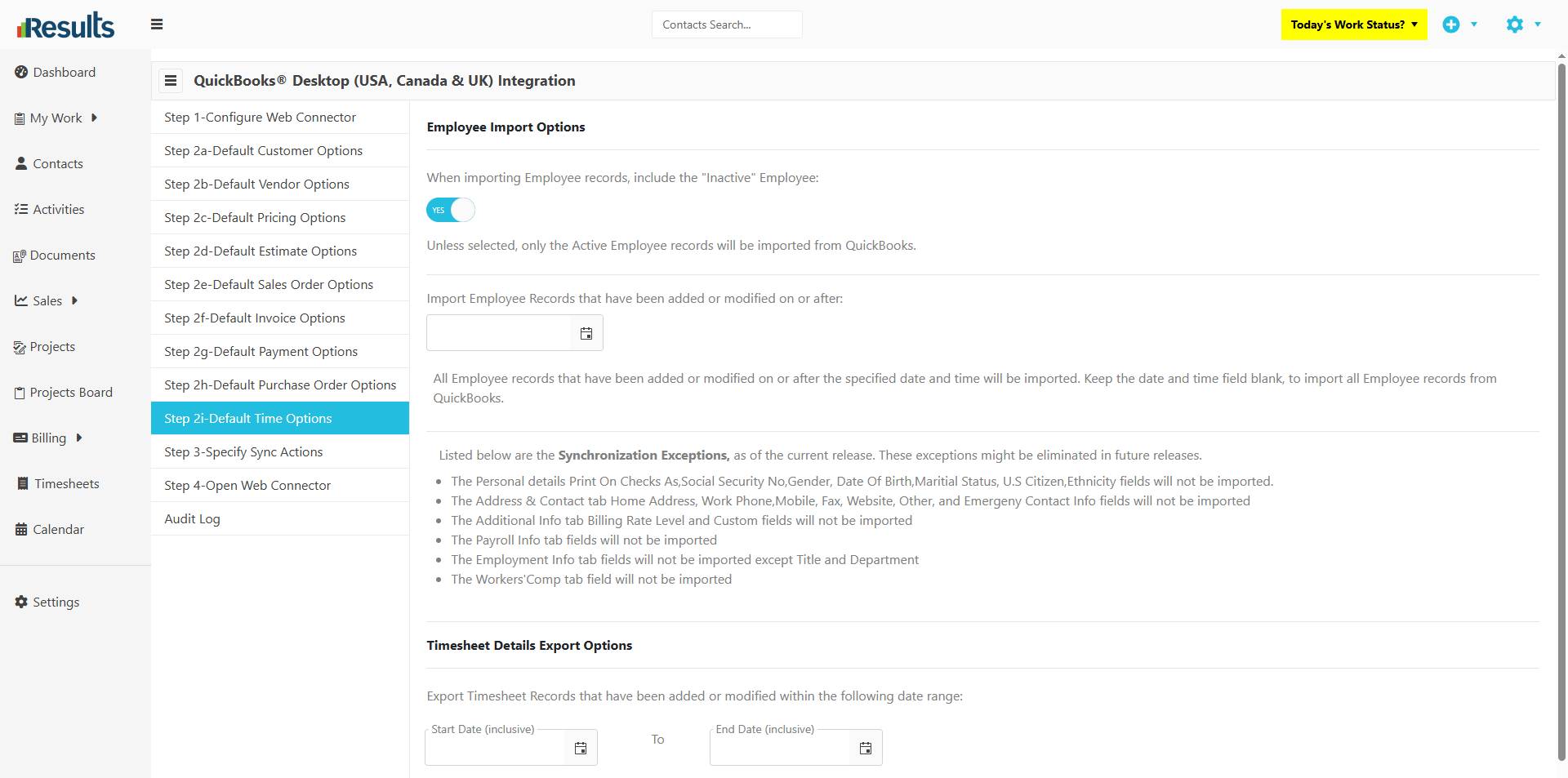
    2. Navigate to the QuickBooks Desktop Integration page.
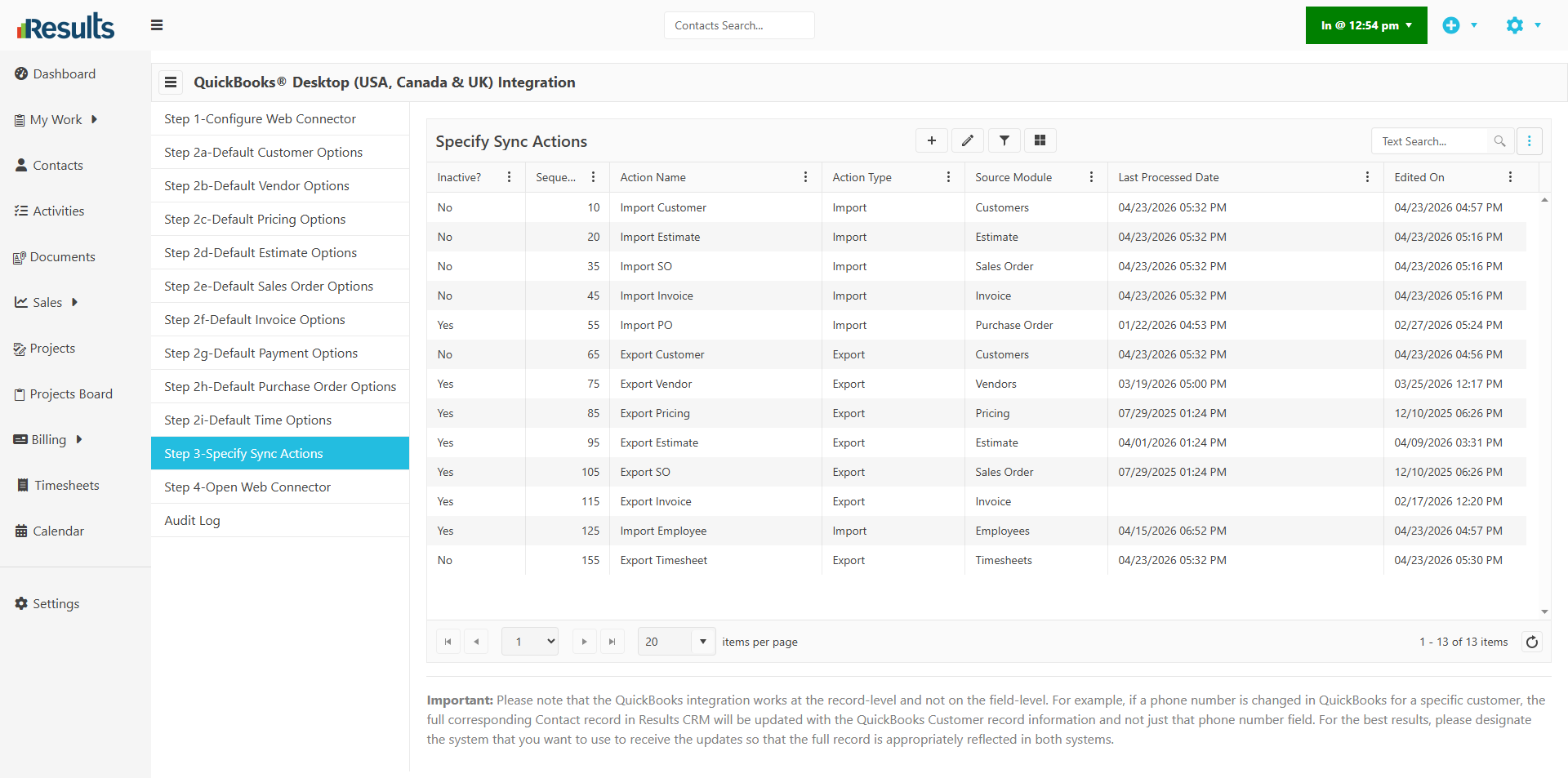
    3. Under Step 2i – Default Time Options, set the various configuration options.
    4. Create an “Import Employees” Sync Action to bring employee data into Results.
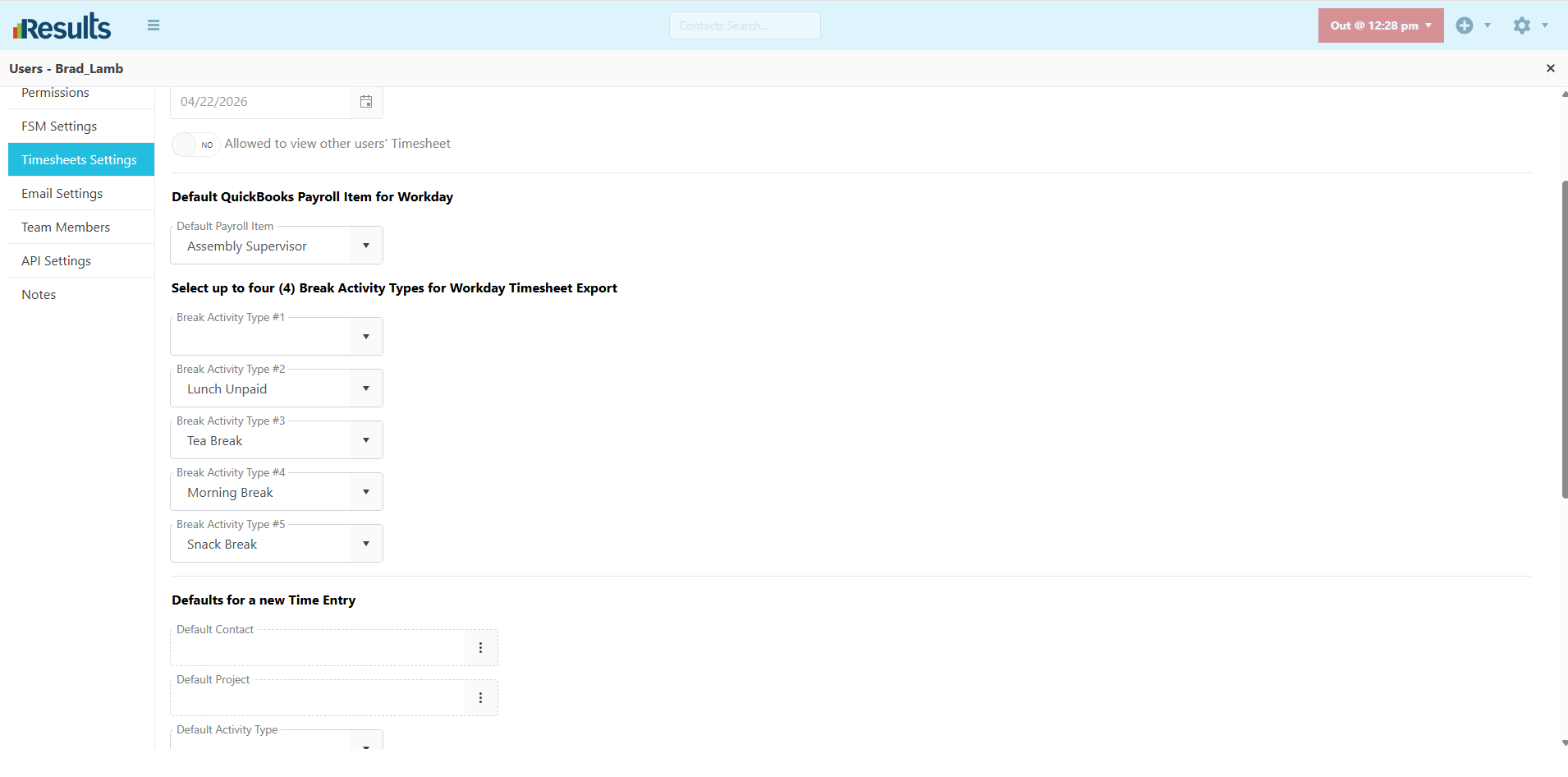
    5. Once imported: Go to User Profile → Timesheet Settings to assign the correct Item for each
          user’s Workday Timesheet. Choose which Breaks to export to QuickBooks Payroll.
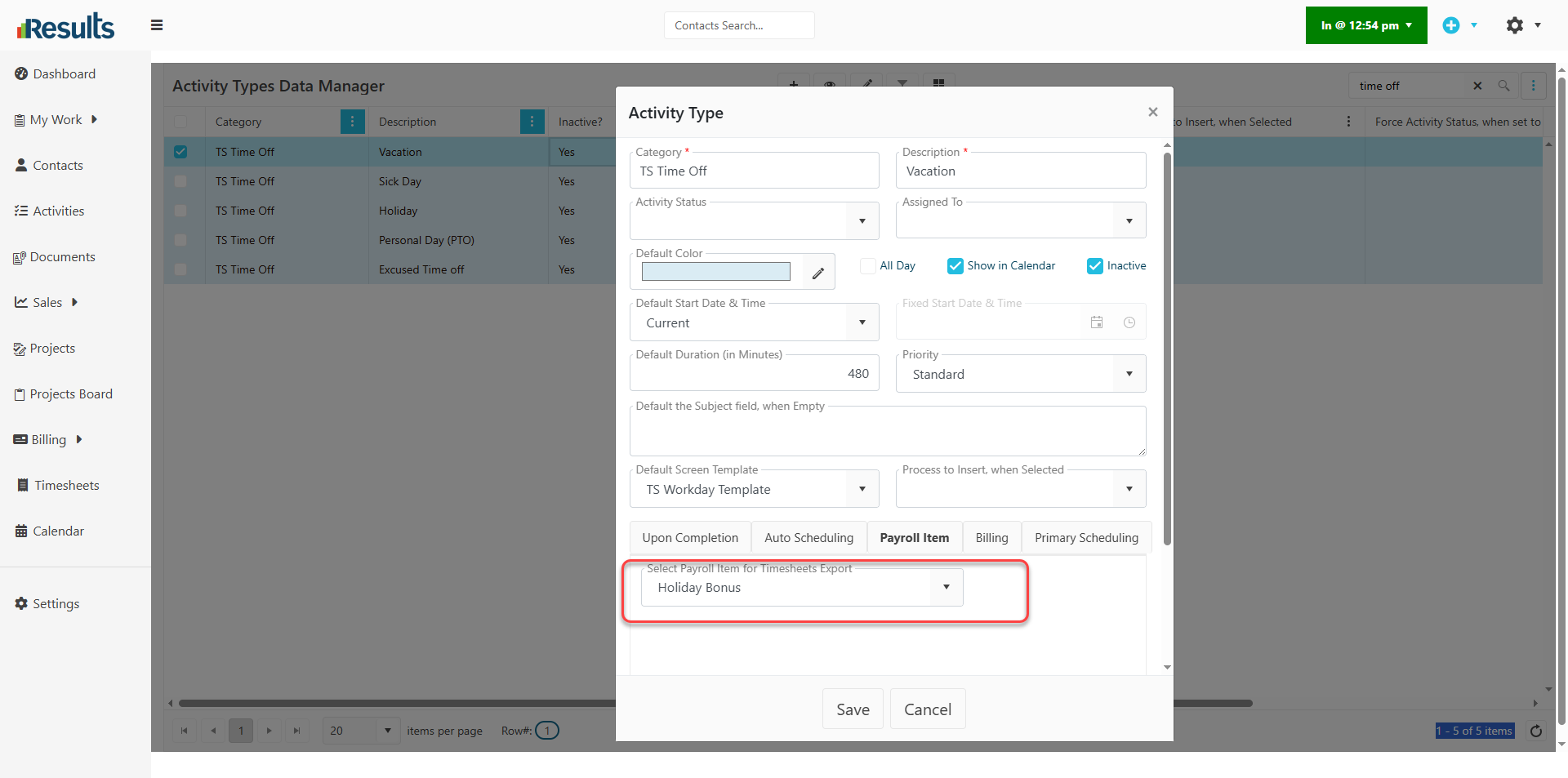
    6. Configure Payroll Items on Activity Types for the Time-Off options to ensure
          correct mapping during export.
    7. Create an “Export Employees” Sync Action to begin exporting timesheet data to
           QuickBooks.
Enhanced Timesheet Export Flexibility – how to export Break Activity as Workday:

      • Users can now select up to five (5) Break Activity Types for inclusion in Workday Timesheet Export. These can be configured in the Timesheets section in the User Profile.
      • Export the selected break activities, with their descriptions included in the Notes field of the QuickBooks Payroll record.


Reduced Manual Effort: Automate employee synchronization and timesheet exports to minimize repetitive data entry.

Improved Payroll Accuracy: Ensure accurate mapping between activities and payroll items to prevent errors during processing.

Flexible Configuration: Customize how break times and workday activities export to align with your business’s payroll policies.

With QuickBooks Desktop Payroll integration, Results simplifies payroll workflows while ensuring accuracy, flexibility, and efficiency across systems.

To learn more or to add Results QB Timesheets and Desktop Payroll licensing for your team, contact the Results Sales Team.